
Appearance
Other features
Window and panels
- Click the pin button in the title bar or press Shift + Alt + T to toggle whether the Lite main window stays on top.
- Press F9 to hide or show all panels.
- Panels such as Environment and Effects can be dragged, and can be detached to float beside the main window.
When using SketchUp on Windows, detached panels that are open and have not been hidden or minimized remain visible when switching between Lite and SketchUp. You can pin or unpin the main window independently.
Undo and redo
- With the Lite window in focus, press Ctrl + Z to undo changes such as adjusting lights or effects. Press Ctrl + Y to redo. Lite's undo history does not include camera moves, image quality, or output format. Use the modeling software's own Undo for changes you made there, such as editing Rhino materials or moving a Revit fixture.
- In SketchUp's Lite material panel, right-click an adjustable material parameter to reset it to the template default. In Rhino and Revit, use the host material editor's controls.
Shortcuts and status display
Shortcuts panel
Click ? in the upper-right corner of the Lite viewport and choose Shortcuts. The panel groups available controls under Navigation, View, and Edit & Interface. Drag the panel by its title bar to float it beside the Lite window.
See Keyboard shortcuts for key bindings. The ? menu also includes Replay Introduction and Help Center.
Status display
In the ? menu, toggle Shortcut hints and Show FPS separately. FPS appears in the title bar. When you adjust field of view (FOV) or movement speed, the viewport shows the current value and hides it after the adjustment. It also shows feedback when you change projection, restore the modeling software's view, or hide the interface.
Viewport frame rate limit (SketchUp)
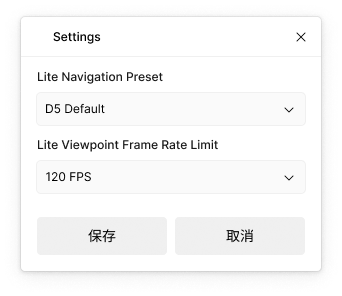
Open Settings on the SketchUp D5 Lite toolbar. Set Lite viewport frame rate to 30, 60, or 120 FPS, or Unlimited, then click Save. The default is 60 FPS. A lower limit can reduce GPU usage by the viewport.
The setting is saved as a user preference and applies to the Lite viewport after saving.
Account and sign-in
Sign in through the D5 Launcher to use Lite; Lite and D5 Render share the same account and plan benefits.