# How to use Support Tool?

D5 Support Tool, which can check the network conditions, hardware, software conflicts, and also collect logs and make it easier for troubleshooting.

#### Ways to Enter D5 Support Tool and Collect Log Files

1. Click "Help"-"Collect Log Files" in **D5 Launcher** and then click "**Collect Logs**"

<figure class="doc-image doc-image--stack">
  <img src="https://docs-static.d5render.com/~/files/v0/b/gitbook-x-prod.appspot.com/o/spaces/-MjbN1iGmN_HBnj_fyU9/uploads/kxrl8MDYBue2girpWWHf/image.png" alt="Support Tool" />
  <figcaption>Support Tool</figcaption>
</figure>

2. Click “Help” in the menu bar, then “System info” and “**Collect Log Files**”.

<figure class="doc-image doc-image--stack">
  <img src="https://docs-static.d5render.com/~/files/v0/b/gitbook-x-prod.appspot.com/o/spaces/-MjbN1iGmN_HBnj_fyU9/uploads/ZfeU2v4TJ4JfYNCMRdaN/image.png" alt="Support Tool" />
  <figcaption>Support Tool</figcaption>
</figure>

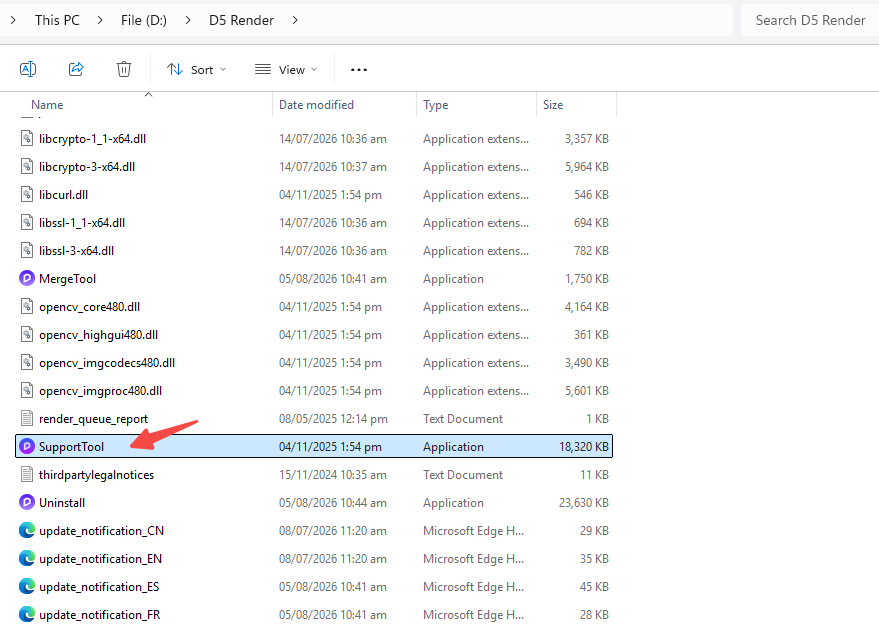
3. Open the D5 Render installation path, Double click the “**Support Tool**”.

<figure class="doc-image doc-image--stack">
  <img src="/user-guide/hardware/support-tool-installation-folder.png" alt="D5 Render installation folder with SupportTool highlighted" />
  <figcaption>D5 Render installation folder with SupportTool highlighted</figcaption>
</figure>

After entering D5 Support Tool, click “**Check All and Zip At Once**”, then send the exported log file (which is called **zziplog** in the D5 folder) to the D5 Support team.

<figure class="doc-image doc-image--stack">
  <img src="https://docs-static.d5render.com/~/files/v0/b/gitbook-x-prod.appspot.com/o/spaces/-MjbN1iGmN_HBnj_fyU9/uploads/HG8kzz5DFptX2D1d0SIN/image.png" alt="Support Tool" />
  <figcaption>Support Tool</figcaption>
</figure>

<figure class="doc-image doc-image--stack">
  <img src="https://docs-static.d5render.com/~/files/v0/b/gitbook-x-prod.appspot.com/o/spaces/-MjbN1iGmN_HBnj_fyU9/uploads/ukceVJibnoUWkfs5I4Nh/image.png" alt="zziplog" />
  <figcaption>zziplog</figcaption>
</figure>