
Appearance
Asset Library
Use the Asset Library to place plants, people, and other assets in SketchUp or Rhino. You move a lightweight proxy in the modeling viewport and see the full model in the Lite render viewport.
Proxies and full models
Each asset has two forms:
| Form | Where it shows | Purpose |
|---|---|---|
| Proxy | Modeling-software viewport | Positioning, moving, rotating, and scaling, while keeping the modeling file light. |
| High-poly model | Lite render viewport | Shows the full model and materials for the final look. |
These proxies come from the D5 Asset Library. To turn your own SketchUp components into placeholders or reference external .skp files, see Proxy and linked models · SketchUp.
Open the Asset Library
Open it from the Lite bottom toolbar or the D5 Lite menu in your modeling software. The panel can be used on its own, without opening the main Lite render window first.
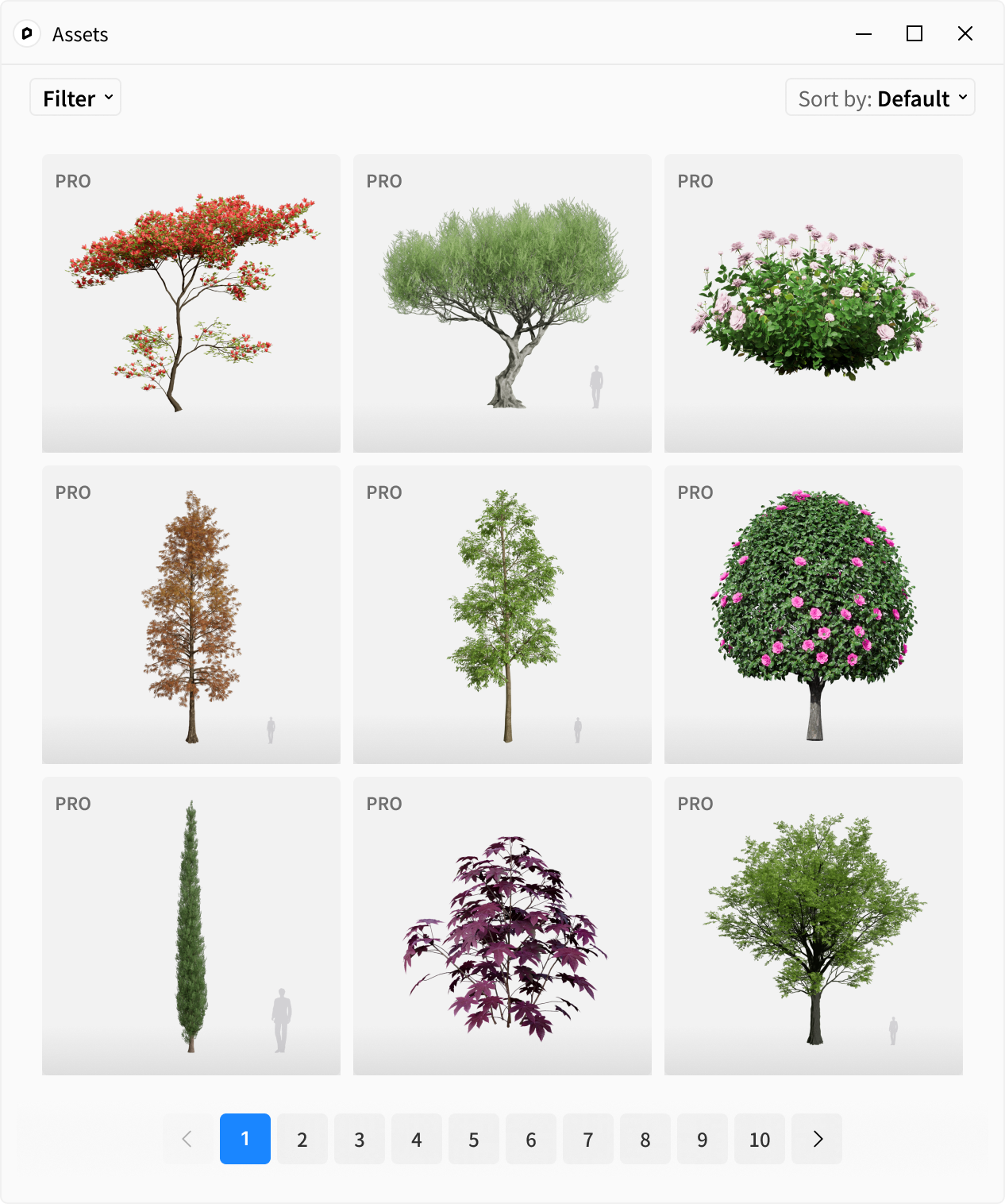
Place an asset
- Open the Asset Library.
- Browse or search for an asset.
- If it is not downloaded, click it and wait for the download to finish.
- Click the downloaded asset, then click a location in the modeling viewport to place its proxy.
- Check that the full model appears in the expected position in the Lite render viewport.
Placing, moving, and deleting are done in the modeling software; the Lite render window only shows the rendered result.
Move and edit assets
Proxies support moving, rotating, scaling, and mirroring, and work with common third-party placement plugins. As long as a proxy remains a component or object, Lite shows the matching high-poly model based on its position and transform.
Asset categories
| Category | Notes |
|---|---|
| Plants | Trees, shrubs, ground cover, and other greenery; plant groups are also supported. |
| People | For adding human scale and atmosphere to a scene. |
| Billboard 2D | Flat assets for distant views or scenes with many people. In SketchUp only, they rotate to face the camera as the view changes. |
Favorites and asset access
Favorites and recent items are shared with D5 Render. Proxy assets are saved with the modeling file; when you open the file on another device, Lite downloads the matching high-poly models as needed. Your D5 Render asset access also applies in Lite, and the Pro watermark appears only in the Lite render viewport — not in the modeling viewport.